
Adding two external screens to a Mac can be more complicated than simply plugging in an HDMI splitter. Compatibility depends on your Mac’s chip, macOS support, available USB-C ports, and whether the adapter uses DisplayLink, MST, or mirror-only output.
We selected 10 HDMI splitter and USB-C adapter options for different Mac setups, from 4K extended-display solutions to affordable hubs with charging and USB ports. Use the guide below to narrow the choices by resolution, refresh rate, software requirements, and desired workspace flexibility.
Best 10 Hdmi Splitters for Dual Monitors on Mac Picks for 2026
Best DisplayLink Pick

- Two extended 4K@60Hz outputs
- Hybrid USB-C/USB-A cable
- Supports M1-M5 Macs and MacBook Neo
Best For: Mac productivity setups needing two extended 4K displays
Best for Triple-Screen Productivity

- Adds two extended HDMI displays
- Supports three screens with the laptop display
- 4K@60Hz and 2K@60Hz support
Best For: M-series MacBook office and multitasking setups
Best Docking-Station Value
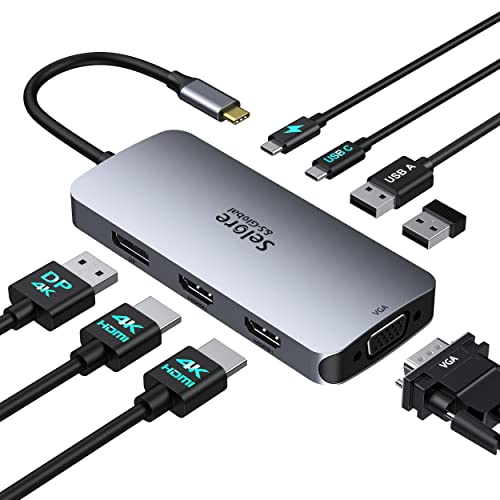
- Dual HDMI plus DP and VGA outputs
- Up to 100W USB-C PD charging
- Includes USB accessory ports
Best For: Mac setups needing mirrored displays and docking features
Best for Easy Setup

- Adds two extended 4K 60Hz HDMI displays
- Supports MacBook M1–M5 and Neo models
- Requires DisplayLink software on Mac
Best For: Mac productivity setups needing two extended 4K monitors
Flexible Compatibility Pick
OREI Dual Monitor HDMI Splitter

- Supports mirrored or extended dual displays
- Includes USB-A and USB-C connectivity
- Outputs up to 4K at 30Hz
Best For: Mixed USB-A and USB-C laptop environments
Best Value USB-C Hub

- Two HDMI outputs plus USB 3.0 and 100W PD
- Up to 4K at 30Hz; 2K/1080p up to 60Hz
- macOS does not support MST ABC mode
Best For: MacBook users needing dual HDMI, charging, and USB connectivity
Best Feature Set
Luonanava Dual 4K HDMI Adapter

- Dual HDMI, USB 3.0 at 5Gbps, and 100W PD
- Dual 4K output is up to 30Hz; single HDMI reaches 4K/60Hz
- macOS supports mirror and A-B-B modes, not MST A-B-C
Best For: Multi-purpose MacBook and Windows laptop workstations
Best for Mirrored Displays

- Two HDMI outputs in a compact USB-C adapter
- Dual output up to 4K/30Hz; single output up to 4K/60Hz
- macOS supports mirrored content only
Best For: Mac presentations and setups using two mirrored monitors
Best DisplayLink Pick – WAVLINK Dual HDMI Adapter
For shoppers comparing HDMI splitters for dual monitors on Mac, the WAVLINK adapter is a flexible DisplayLink option for adding two extended 4K displays. Its hybrid cable works with USB-C, USB-A, Thunderbolt 3/4, and USB 4 ports, but macOS requires driver installation.
Best For: Mac users who need two extended 4K@60Hz monitors for web browsing and productivity.
Pros:
- Supports two simultaneous 4K@60Hz displays.
- Works with USB-C and USB-A connections through its hybrid cable.
- Supports M1 through M5 Macs and MacBook Neo.
- Includes a 12-month warranty, extendable by six months for registered members.
Cons:
- DisplayLink driver installation is required.
- Not recommended for gaming, graphics-intensive work, or design applications.
- Does not support HDCP-protected streaming content such as Netflix and Hulu.
This is a strong productivity-focused choice when you want high-resolution extended displays and broad port compatibility. Confirm that your workflow does not depend on protected video playback or demanding graphics performance.
Best for Triple-Screen Productivity – OREI SplitExtend 4K
The OREI SplitExtend is designed for Mac users seeking HDMI splitters for dual monitors on Mac with an extended desktop. It can connect two HDMI monitors while retaining the laptop screen, providing up to three separate screens, with DisplayLink software required.
Best For: M1, M2, and M3 MacBook users who want two external monitors plus the built-in display for office work.
Pros:
- Supports two extended external displays.
- Allows up to three separate screens including the laptop display.
- Supports 4K@60Hz and 2K@60Hz output configurations.
- Connects through USB-C, USB-A 3.1, Thunderbolt 3/4, or USB 4 devices.
Cons:
- Requires DisplayLink driver download and installation.
- Not recommended for gaming, graphics-intensive work, or design applications.
- Does not support HDCP-protected content from services such as Netflix and Hulu.
OREI’s main advantage is its productivity-oriented three-screen arrangement, especially for compatible M-series MacBooks. It is best viewed as a workstation accessory rather than a gaming or streaming solution.
Best Docking-Station Value – Selore Dual HDMI USB-C Hub
The Selore hub combines dual HDMI connectivity with docking features, making it a practical alternative to basic HDMI splitters for dual monitors on Mac. However, on MacBooks its external displays are limited to mirroring rather than independent extended content.
Best For: Mac users who want a compact hub for mirrored dual displays, charging, USB accessories, and mixed video outputs.
Pros:
- Includes two HDMI ports, DisplayPort, and VGA video outputs.
- Provides up to 100W USB-C Power Delivery charging.
- Adds two USB 2.0 ports and a USB-C port for peripherals.
- Supports a 4K@60Hz HDMI output and a 4K@30Hz HDMI output.
Cons:
- MacBooks use this device for mirroring, so extended screens show the same content.
- Requires a full-featured USB-C or Thunderbolt port with video support.
- VGA use with a Mac may limit connected screens to 1080P@60Hz.
This hub is more versatile than a dedicated display adapter because it also handles charging and accessories. Choose it when mirrored displays meet your needs; Mac users needing independent extended desktops should consider a DisplayLink option instead.
Best Native MST Hardware – llano Dual 4K HDMI Splitter
The llano D10 uses DisplayPort MST to turn one compatible USB-C port into two HDMI video streams. It is a compelling hardware option among HDMI splitters for dual monitors on Mac, but macOS may allow only mirroring or partial extension, while full independent triple-display modes are supported on Windows.
Best For: USB-C laptops and users who want dual 4K@60Hz output, charging, and high-refresh-rate support, particularly on Windows.
Pros:
- Can drive two external 4K@60Hz monitors simultaneously.
- Includes a USB-C Power Delivery port supporting up to 100W.
- Supports HDR10+ and up to 144Hz at 2K resolution.
- Uses a compact USB-C connection and requires DisplayPort Alt Mode.
Cons:
- macOS is limited to mirroring or partial extended modes by its display architecture.
- Full triple-independent-display modes are supported on Windows, not macOS.
- Requires a USB-C port with DisplayPort Alt Mode.
The llano is particularly attractive for Windows MST setups and for users prioritizing 4K output, HDR, refresh rate, and charging. Mac buyers should verify the exact display mode they need before purchasing.
Best for Easy Setup – Plugable Dual 4K HDMI Adapter
If you need HDMI splitters for dual monitors on Mac, the Plugable USB-C to HDMI Adapter is a strong productivity-focused option. It can add two extended 4K displays at 60Hz from one USB-C, Thunderbolt, or USB4 port, including on base MacBook models with limited native external-display support. Mac users must install DisplayLink Manager and approve the required macOS permission.
Best For: MacBook users who want two extended external monitors for office work, coding, and multitasking.
Pros:
- Adds two extended 4K 60Hz HDMI displays from one compatible USB-C port.
- Supports MacBooks with M1 through M5 and Neo chips, including models limited to one native external display.
- Works with extended or mirrored display modes and includes lifetime support from Plugable.
Cons:
- Requires DisplayLink Manager and macOS display permissions.
- DisplayLink does not support HDCP-protected streaming apps such as Netflix, Disney+, Hulu, and Prime Video.
For a Mac-centered desk setup, this is the most capable choice of the three for true dual-monitor extension and high refresh-rate 4K productivity. Its driver requirement is the main setup consideration.
Flexible Compatibility Pick – OREI Dual Monitor HDMI Splitter
The OREI SplitExtend is designed for users comparing HDMI splitters for dual monitors on Mac and other platforms. It connects through USB-C or USB-A and can mirror or extend a single source to two displays at up to 4K at 30Hz. It requires the Silicon Motion driver, and OREI recommends an Intel i5 processor or higher for optimal performance.
Best For: Mixed-device households or offices that need USB-A and USB-C connectivity alongside dual-monitor support.
Pros:
- Supports mirrored or extended viewing across two external displays.
- Integrated USB-A to USB-C adapter works with USB-C, USB-A, Thunderbolt 3/4, and USB4 systems.
- Supports macOS 10.10 and newer, Windows, Chrome OS, and Android 7.1 or later.
Cons:
- Limited to 4K at 30Hz.
- Requires Silicon Motion driver installation and is not plug-and-play.
- Not compatible with iOS, Linux, or Unix; Android supports up to 1080p mirroring.
The OREI is a versatile option when port flexibility matters more than 4K 60Hz performance. Confirm your operating system, processor, and workplace driver-installation permissions before buying.
Best Hub for Mirroring – Fophmo USB-C Dual HDMI Adapter
The Fophmo USB-C Dual HDTV Adapter combines two HDMI outputs with USB-A data and up to 100W power delivery. For Mac users researching HDMI splitters for dual monitors on Mac, the key limitation is that macOS supports mirror mode only with this adapter; Windows systems with compatible DisplayPort Alt Mode can extend displays.
Best For: Mac users who want mirrored dual displays plus charging and a USB-A port in one compact hub.
Pros:
- Provides two HDMI outputs, USB-A 3.0, and up to 100W power delivery.
- Supports dual displays up to 4K at 30Hz or one HDMI display up to 4K at 60Hz, depending on the host device.
- Plug-and-play design works with compatible USB-C video-output ports.
Cons:
- macOS supports mirror mode only, not two separate extended screens.
- Requires a USB-C port with DisplayPort Alt Mode; charging-only or data-only ports will not work.
- Does not include a charger, and some listed HP, Lenovo, Acer, and other devices are incompatible.
This adapter is better viewed as a mirrored-display hub than a true Mac dual-monitor extender. It makes sense when charging and USB connectivity are valuable, but users needing two independent Mac desktops should choose a DisplayLink-based solution instead.
Best Value USB-C Hub – KOZYC Dual HDMI Adapter
If you need HDMI splitters for dual monitors on Mac and also want charging and USB connectivity, the KOZYC adapter combines two HDMI outputs with a USB-A port and 100W Power Delivery. It supports up to 4K at 30Hz across the HDMI connection, though Mac users should note its display-mode limitations.
Best For: MacBook users who want a compact dual-HDMI hub with charging and basic peripheral support.
Pros:
- Includes two HDMI ports, USB 3.0, and 100W PD charging.
- Supports up to 4K at 30Hz, with 2K and 1080p support at up to 60Hz.
- Plug-and-play design requires no external power supply or driver.
- Includes a two-year warranty and lifetime technical support.
Cons:
- macOS does not support MST ABC mode, so it cannot provide three independent displays through this adapter.
- Maximum 4K output is 30Hz when using the stated dual-display setup.
- The host USB-C port must support Thunderbolt 3 or DisplayPort Alt Mode.
This is a practical multifunction hub for a Mac setup that needs two HDMI connections, but buyers should verify their Mac’s USB-C video support and plan around macOS display-mode restrictions.
Best Feature Set – Luonanava Dual 4K HDMI Adapter
Among HDMI splitters for dual monitors on Mac, this Luonanava USB-C adapter stands out for its combination of dual HDMI outputs, USB 3.0 data, and 100W charging. It can mirror or extend displays on macOS, but its supplied specifications limit simultaneous dual output to 4K at 30Hz; 4K at 60Hz applies when using one HDMI port.
Best For: MacBook and Windows laptop users who want a versatile hub for displays, fast USB transfers, and charging.
Pros:
- Provides two HDMI ports, a 5Gbps USB-A port, and 100W USB-C PD.
- Supports mirror and extend modes, including A-B-B on macOS.
- Offers up to 4K at 30Hz with both HDMI outputs or 4K at 60Hz through one port.
- Plug-and-play compatibility covers macOS, Windows, Linux, and Android systems.
Cons:
- macOS does not support MST A-B-C mode for three independent displays.
- Dual-display 4K output is limited to 30Hz according to the product notes.
- The computer’s USB-C port must support DisplayPort Alt Mode.
This is the most complete option here for users who want a display adapter that also handles charging and high-speed USB transfers. Check your Mac’s USB-C specifications before buying and choose suitable HDMI 2.0 cables for 4K use.
Best for Mirrored Displays – AYauGamA Dual HDMI Adapter
This AYauGamA adapter is a straightforward choice among HDMI splitters for dual monitors on Mac when you want two HDMI connections without extra USB or charging ports. It supports up to 4K at 30Hz on both outputs or 4K at 60Hz through one port, but macOS mirrors the same content rather than extending two separate desktops.
Best For: Mac users who need the same screen shown on two HDMI monitors for presentations, viewing, or simple mirrored workspaces.
Pros:
- Adds two HDMI display ports through one USB-C connection.
- Supports up to 4K at 30Hz on dual output or 4K at 60Hz with one HDMI port.
- Plug-and-play operation requires no drivers or extra software.
- Compact aluminum design includes a one-year warranty and technical support.
Cons:
- macOS supports mirror mode only; two connected monitors cannot show different extended screens.
- It does not include USB-A data or Power Delivery charging ports.
- The host USB-C port must support video output or DP Alt Mode.
Choose this model if mirrored content meets your needs and you prefer a simple two-port adapter. It is not the right fit for a Mac user seeking two independent extended desktops.
How We Picked These Hdmi Splitters for Dual Monitors on Mac
We focused on adapters and hubs that are specifically positioned for two-monitor Mac setups, while separating true extended-display products from devices that only duplicate one image. The selection covers DisplayLink adapters, MST-based solutions, USB-C multiport hubs, and HDMI splitters designed for particular macOS limitations.
We also considered advertised resolution and refresh rates, Mac compatibility, port selection, power delivery, USB connectivity, installation requirements, and whether the product is better suited to office productivity, basic presentations, or higher-resolution workflows. Because compatibility can vary by Mac model and operating system, verify the manufacturer’s support list before ordering.
Quick Comparison
| Type | Best For | Important Consideration |
|---|---|---|
| DisplayLink adapter | Extended desktops on Macs with native display limits | Usually requires DisplayLink software and may use system resources |
| MST adapter | Compatible USB-C systems and straightforward dual output | Mac support can be more limited than Windows support |
| USB-C hub | Monitors plus charging, USB, or other peripherals | Bandwidth is shared across connected ports |
| HDMI splitter | Mirrored presentations or duplicated content | Many basic splitters cannot create two independent Mac desktops |
Key Buying Factors for Hdmi Splitters for Dual Monitors on Mac
Extended Display Versus Mirror Mode
This is the most important distinction. Extended mode lets each monitor show different windows, while mirror mode duplicates the same image. Some products advertise dual HDMI output but support only mirroring on macOS. If you need two independent workspaces, look for explicit Mac extended-display support and, where applicable, DisplayLink compatibility.
Mac Chip and MacOS Compatibility
Check whether the adapter supports your specific MacBook Air, MacBook Pro, Mac mini, iMac, or Mac Studio. Apple silicon models can have different external-display limits than Intel Macs, and compatibility may vary among M1, M2, M3, M4, and M5 systems. Confirm the required macOS version and whether a driver or permission setup is needed.
Resolution, Refresh Rate, and Bandwidth
4K at 60Hz provides smoother cursor movement than 4K at 30Hz, but dual 4K output requires substantial bandwidth. If both displays run through one USB-C connection, other hub ports may reduce available performance. For text-heavy work, resolution and stable refresh rate generally matter more than maximum advertised output alone.
Power and Connectivity
A hub with 100W Power Delivery can reduce cable clutter, but the Mac may receive less than the advertised maximum after power is reserved for the adapter. USB 3.0 ports, Ethernet, SD card readers, and audio connections can also make a dual-monitor adapter more useful for a desk setup.
Who Should Buy Which Hdmi Splitters for Dual Monitors on Mac?
For the Most Reliable Extended Workspace
Choose a DisplayLink-based option when your Mac does not natively support two independent external displays through a single connection and you are comfortable installing software. It is often the most practical route for productivity users who need separate windows on both monitors.
For a Simple, Flexible Desk Hub
Select a USB-C dual-HDMI hub with Power Delivery and USB ports if you want monitor connectivity plus charging and accessories in one device. Confirm that its macOS mode provides extended output rather than only mirroring.
For Presentations or Mirrored Screens
A conventional HDMI splitter can be suitable when both displays should show identical content. It is usually the simplest and least expensive choice, but it is not the right solution for a two-screen Mac desktop if it lacks independent display support.
For Budget-Conscious Buyers
Prioritize verified Mac compatibility over a long feature list. A lower-cost 4K-at-30Hz adapter may work well for documents and presentations, while buyers who scroll frequently, edit video, or use detailed creative applications should favor a supported 60Hz model.