
Choosing the right display can make video editing faster, more accurate, and far less frustrating. The best screens balance resolution, color fidelity, and comfortable everyday usability.
In this roundup of computer monitors for video editing, we focus on models that help you judge footage more confidently, whether you edit for YouTube, client work, or a professional studio.
Best 10 Computer Monitors for Video Editing Picks for 2026
Color-Accurate 27-inch QHD Pick
ASUS ProArt PA278QV 27 Inch 1440p QHD Professional Monitor

- Calman Verified with Delta E < 2 accuracy
- 100% sRGB and Rec. 709 coverage
- 27-inch 1440p IPS with ergonomic stand
Best For: Editors who want reliable color and a comfortable QHD workspace
Large-Screen 4K Creator Display
LG 32” Ultrafine 4K UHD Computer Monitor

- 31.5-inch 4K UHD display
- HDR10 with 90% DCI-P3 coverage
- 3-side borderless design for easy dual setups
Best For: Editors who want a big 4K workspace with useful color support
Compact 16:10 Editing Monitor
ASUS ProArt PA248QV 24 Inch WUXGA Monitor
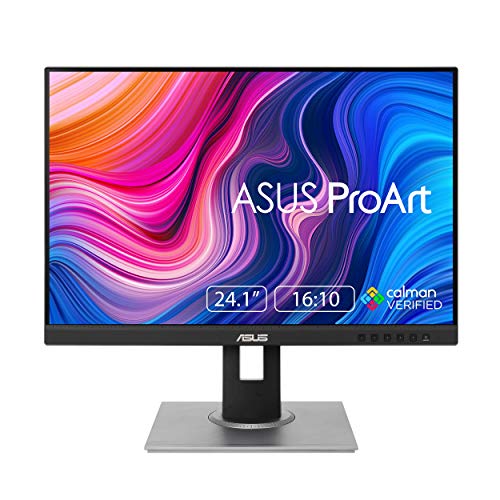
- Calman Verified with Delta E < 2
- 100% sRGB and Rec.709 coverage
- 16:10 panel with flexible ergonomic stand
Best For: Editors who want a compact, color-accurate monitor with extra vertical space
Bundle-Friendly 27-inch 4K Editor
LG Ultrafine U7 27-inch UHD IPS Monitor

- 27-inch 4K UHD IPS display
- HDR10 with 90% DCI-P3 color coverage
- Bundle includes cable, cleaning kit, and straps
Best For: Editors who want a 27-inch 4K monitor bundle with useful extras
Creator-Friendly 4K Detail
Samsung ViewFinity S7 27-inch UHD

- 4K UHD resolution for sharper editing detail
- HDR10 and wider color detail for lifelike review
- Multiple ports plus tool-free stand setup
Best For: Editors who want a sharp 4K workspace with easy connectivity
Color-Accurate USB-C Workflow

- Factory calibrated with Pantone Validated color
- 90W USB-C supports video, data, and charging
- 27-inch QHD IPS panel with 120Hz refresh
Best For: Editors and creators who want calibrated color and one-cable USB-C convenience
Pro Color for Mac Workflows
ASUS ProArt PA279CRV 27-inch 4K

- 99% DCI-P3 and 99% Adobe RGB coverage
- Factory pre-calibrated to Delta E < 2
- USB-C 96W plus DisplayPort daisy-chain support
Best For: Color-critical editors on Mac or multi-monitor setups
Creator-Friendly 4K

- 4K IPS display with 99% sRGB color
- 120Hz refresh and FreeSync Premium
- Ergonomic stand with ComfortView Plus
Best For: Editors who want smooth motion and adjustable comfort
Color-Focused UltraFine

- 4K IPS panel with up to 95% DCI-P3
- USB-C with 90W power delivery
- DisplayHDR 400 and flexible connectivity
Best For: Creators who value color range and USB-C convenience
Color-Accurate 27-inch QHD Pick – ASUS ProArt PA278QV 27 Inch 1440p QHD Professional Monitor
If you’re comparing computer monitors for video editing, the ASUS ProArt PA278QV is built around color accuracy and a practical 27-inch QHD workspace. Its Calman Verified tuning, Delta E < 2 performance, and 100% sRGB/Rec. 709 coverage make it a dependable choice for creators who want consistent results without spending on a flagship panel.
Best For: Editors who want a color-accurate 27-inch monitor with a sharp 1440p layout and strong ergonomics.
Pros:
- Calman Verified with Delta E < 2 for accurate, reliable color
- 100% sRGB and 100% Rec. 709 coverage suits video editing work
- 27-inch 2560 x 1440 IPS panel offers clear detail and wide viewing angles
- Fully adjustable stand plus USB hub help keep a creative desk organized
Cons:
- 75Hz refresh rate is modest for motion-heavy use
- Not a 4K panel if you want maximum timeline and preview space
This is a strong middle-ground option for editors who care more about dependable color and workflow comfort than extra resolution or gaming features. It fits especially well for photo/video work where accuracy and consistency matter most.
Large-Screen 4K Creator Display – LG 32” Ultrafine 4K UHD Computer Monitor
For buyers looking at computer monitors for video editing, this 32-inch LG UltraFine gives you a large 4K canvas with HDR10 and 90% DCI-P3 coverage. The 3840 x 2160 resolution is useful when you want more room for timelines, preview windows, and detailed creative work, while the borderless design makes it easy to pair with a second screen.
Best For: Video editors who want a roomy 4K monitor with creator-friendly color support and a clean multi-monitor look.
Pros:
- 31.5-inch 4K UHD panel provides sharp detail and extra workspace
- HDR10 and 90% DCI-P3 support help with richer-looking creative content
- 3-side borderless design is well suited to multi-monitor setups
- Built-in speakers and dual controller features add everyday convenience
Cons:
- 60Hz refresh rate is basic for fast-motion tasks
- 250 cd/m² brightness is moderate compared with brighter creator displays
This model makes sense if your editing workflow benefits from more screen space and 4K sharpness. It is less focused on pro-grade calibration details than some creator monitors, but it offers a practical mix of size, resolution, and color support.
Compact 16:10 Editing Monitor – ASUS ProArt PA248QV 24 Inch WUXGA Monitor
If you want computer monitors for video editing with a smaller footprint, the ASUS ProArt PA248QV offers a practical 24.1-inch 16:10 layout and solid color performance. Its Calman Verified tuning, Delta E < 2 rating, and 100% sRGB/Rec.709 coverage make it a sensible pick for creators who want accurate color in a space-saving form factor.
Best For: Video editors and content creators who prefer a compact, accurate monitor with extra vertical space.
Pros:
- Calman Verified with Delta E < 2 for dependable color accuracy
- 100% sRGB and Rec.709 coverage fits photo and video editing
- 16:10 WUXGA resolution adds useful vertical workspace
- Height, pivot, swivel, and tilt adjustments support long sessions
Cons:
- 24.1-inch size is smaller than many creator-focused alternatives
- 1920 x 1200 resolution is less expansive than 4K options
This is a smart choice for editors who want reliable color and a comfortable working position without moving up to a larger display. The 16:10 aspect ratio is especially handy when you want a little more room for panels and timelines.
Bundle-Friendly 27-inch 4K Editor – LG Ultrafine U7 27-inch UHD IPS Monitor
Among computer monitors for video editing, the LG UltraFine U7 stands out for giving you a 27-inch 4K IPS panel in a creator-friendly bundle. With 3840 x 2160 resolution, HDR10, and 90% DCI-P3 coverage, it’s aimed at users who want sharp detail and lifelike color for editing, design, and general productivity.
Best For: Editors who want a 27-inch 4K monitor bundle with accurate color support and a clean desk setup.
Pros:
- 27-inch 4K UHD IPS panel delivers sharp text and detailed imagery
- HDR10 and 90% DCI-P3 help support creator-focused color work
- 3-sided borderless design is useful for multi-monitor setups
- Bundle includes HDMI cable, cleaning kit, and hook-and-loop straps
Cons:
- Specific calibration details are not listed in the supplied notes
- Best suited to productivity and content creation rather than high-refresh use
This is a well-rounded option if you want the convenience of a bundled accessory package along with 4K sharpness. It’s especially appealing for editors who value a tidy workspace and broad creative use rather than chasing advanced motion performance.
Creator-Friendly 4K Detail – Samsung ViewFinity S7 27-inch UHD
If you want computer monitors for video editing that prioritize crisp detail and easy day-to-day workflow, this Samsung 27-inch ViewFinity S7 is built around 4K UHD clarity. The higher resolution gives you more screen space for timelines, bins, and preview windows, while HDR10 and a wider color gamut help footage and graphics look more lifelike during review.
Best For: Editors who want a sharp 4K workspace with simple connectivity and easy setup.
Pros:
- 4K UHD resolution provides extra detail and more room for complex editing layouts
- HDR10 and wider color detail support more accurate-looking image review
- HDMI, DisplayPort, USB-A, and USB-B make it easy to connect multiple devices
- Easy Setup Stand installs without tools or screws
Cons:
- No factory calibration or color-accuracy certification is listed in the notes
- Limited information provided on panel refresh rate or gaming-oriented performance
This is a practical pick if you value a high-resolution editing canvas and straightforward setup over advanced color-management extras. The built-in eye care features are also helpful for long sessions in front of the screen.
Color-Accurate USB-C Workflow – ViewSonic ColorPro VP2766-2K
Among computer monitors for video editing, the ViewSonic VP2766-2K stands out for color confidence and a clean USB-C setup. Its 27-inch QHD IPS panel gives you more detail than Full HD, while factory calibration, Pantone validation, and 100% sRGB coverage are aimed at keeping what you see on screen aligned with your output.
Best For: Editors and creators who want factory-calibrated color and a one-cable laptop connection.
Pros:
- Factory hardware calibrated with Pantone Validated certification and 100% sRGB coverage
- 90W USB-C can carry video, data, and laptop charging through one cable
- 27-inch QHD IPS panel and 120Hz refresh rate provide a detailed, smooth workspace
- Strong ergonomic adjustment plus flicker-free and low blue light features for long sessions
Cons:
- QHD resolution is lower than 4K if you want maximum timeline and preview space
- Color focus is centered on sRGB rather than broader wide-gamut specs
This is a smart choice if your editing setup benefits more from reliable calibration and USB-C simplicity than from a 4K panel. The included connectivity and ergonomic stand make it especially practical for a compact, modern desk.
Pro Color for Mac Workflows – ASUS ProArt PA279CRV 27-inch 4K
If you need computer monitors for video editing with professional color credentials, the ASUS ProArt PA279CRV is designed for accuracy-first workflows. Its 27-inch 4K UHD IPS panel, 99% DCI-P3 and 99% Adobe RGB coverage, and factory pre-calibration to Delta E < 2 make it well suited to color-sensitive review and finishing.
Best For: Color-critical editors working on Mac or multi-monitor setups who want a high-end 4K reference-style display.
Pros:
- 4K UHD IPS panel provides sharp detail for editing and grading
- 99% DCI-P3 and 99% Adobe RGB coverage support vibrant, accurate color reproduction
- Factory pre-calibrated to Delta E < 2 and Calman Verified for professional precision
- USB-C with 96W Power Delivery plus DisplayPort daisy-chain support streamlines workspace setup
Cons:
- Premium feature set may be more than casual editors need
- The notes emphasize professional color performance more than high refresh or motion features
This monitor is a strong fit when color accuracy matters as much as resolution. The extended warranty, ergonomic stand, and wide connectivity make it a polished option for long-term creative work.
Budget 4K Pick – Sceptre 27" 4K IPS Monitor
If you want computer monitors for video editing without spending much, this 27-inch Sceptre gives you a 4K UHD IPS panel with 100% sRGB and a matte finish. It focuses on sharp detail, broad viewing angles, and a clean 16:9 workspace, which makes it suitable for timeline work, previewing 4K footage, and checking color across the screen.
Best For: Budget-conscious editors who want a basic 4K IPS display with accurate-looking color coverage.
Pros:
- 4K UHD resolution provides plenty of workspace and fine detail for editing.
- IPS panel and 100% sRGB support help with consistent color and viewing angles.
- Matte screen and blue light filter can make long sessions more comfortable.
- DisplayPort and HDMI connectivity plus built-in speakers add simple versatility.
Cons:
- 70Hz refresh rate is modest compared with faster creator monitors.
- No advanced HDR support is listed.
- Built-in speakers are included, but audio features are basic.
This is a straightforward value option if your priority is 4K clarity and IPS color behavior rather than premium creator extras. It fits well for editors who need a usable large canvas at a lower entry point.
Creator-Friendly 4K – Dell 27 S2725QS
For computer monitors for video editing, the Dell S2725QS stands out with a 27-inch 4K IPS panel, 99% sRGB color, and a 120Hz refresh rate. It also includes ComfortView Plus, a matte anti-glare screen, and a fully adjustable stand, making it a practical choice for editors who spend long hours on the timeline and want a sharper, smoother desktop experience.
Best For: Video editors who want a well-rounded 4K monitor with strong color, smooth motion, and ergonomic adjustment.
Pros:
- 4K IPS panel with 99% sRGB delivers vivid, work-friendly color.
- 120Hz refresh rate and FreeSync Premium provide smooth motion.
- ComfortView Plus helps reduce blue light without sacrificing color accuracy.
- Height, tilt, swivel, and pivot adjustments support a comfortable editing setup.
Cons:
- Contrast is listed at 1500:1, which is solid but not class-leading.
- Only a 27-inch size is offered here.
- Built-in speakers are included, but audio is not the main focus.
This Dell feels especially balanced for editing workflows because it combines creator-friendly color with smoother-than-average refresh performance. If you want one monitor that handles both editing and general use well, this is an easy one to shortlist.
Color-Focused UltraFine – LG 27UP850K-W 27" 4K Monitor
The LG 27UP850K-W is a strong fit if you’re comparing computer monitors for video editing and want rich color plus useful connectivity. Its 27-inch 4K IPS panel supports up to 95% DCI-P3 and VESA DisplayHDR 400, while USB-C with up to 90W power delivery makes it easy to connect a laptop and keep your desk tidy.
Best For: Editors and creators who want a color-rich 4K monitor with USB-C convenience.
Pros:
- 4K IPS display with up to 95% DCI-P3 for wide color expression.
- DisplayHDR 400 support adds HDR capability beyond standard SDR panels.
- USB-C with up to 90W power delivery simplifies laptop setups.
- Includes DisplayPort, dual HDMI, USB ports, headphone jack, and built-in speakers.
Cons:
- Refresh-rate details are not highlighted for fast-motion work.
- Best value depends on whether you need the USB-C and HDR features.
- Some users may prefer a higher-end panel if color-critical work is the top priority.
As a creator-oriented display, this LG leans into color range, HDR support, and cable convenience more than gaming-style speed. It makes sense for editors who want an organized workstation and a monitor that handles content creation tasks cleanly.
How We Picked These Computer Monitors for Video Editing
We looked for monitors that prioritize color consistency, sharpness, panel quality, and practical editing features such as USB-C connectivity, ergonomic stands, and wide-gamut support. We also favored options that make it easier to see timelines, compare footage, and work for long sessions without eye strain.
Quick Comparison
For most editors, 27-inch 4K models are the sweet spot because they combine crisp detail with enough screen space for timelines and tools. 1440p options can be a smart value choice for lighter workflows, while 32-inch 4K displays are better if you want more room on screen without scaling everything too aggressively. If you regularly move files between a laptop and monitor, USB-C with power delivery can simplify your setup.
Key Buying Factors for Computer Monitors for Video Editing
Resolution and Screen Size
Higher resolution gives you a sharper image and more workspace. For most Computer Monitors for Video Editing, 4K on a 27-inch panel is an excellent balance. A 32-inch 4K screen can feel more spacious, while 1440p may be enough if your editing work is less color-critical or budget-driven.
Color Accuracy and Gamut
Look for strong sRGB coverage at minimum, and preferably wider gamuts such as DCI-P3 or Adobe RGB if you deliver content for modern web, HDR, or print-adjacent workflows. Factory calibration is a plus, but proper profiling still matters if accuracy is important.
Panel Type and Uniformity
IPS panels are common because they usually offer better viewing angles and more dependable color than budget alternatives. Uniform brightness and consistent blacks matter too, especially when grading dark scenes or matching shots.
Connectivity and Workflow Features
USB-C, DisplayPort, HDMI, and built-in hubs can reduce cable clutter and make a laptop-based setup easier to manage. Extra features like tilt, swivel, height adjustment, and pivot support help you build a more comfortable editing station.
Refresh Rate and HDR
A higher refresh rate is not essential for color grading, but it can make general desktop use feel smoother. HDR support is only useful if the monitor can deliver meaningful brightness and contrast; basic HDR labeling alone does not guarantee a strong HDR editing experience.
Who Should Buy Which Computer Monitors for Video Editing?
If you want the safest all-around choice, go for a 27-inch 4K IPS monitor with good color coverage and USB-C. Editors working on tighter budgets may prefer a sharp 1440p display with solid accuracy over a cheaper 4K panel with weaker image quality. If your workflow involves a MacBook or frequent laptop docking, prioritize USB-C power delivery and easy single-cable connectivity. For color-sensitive work, choose the most accurate, widest-gamut model you can afford and plan to calibrate it regularly.
In short, the best monitor is the one that matches your resolution needs, color demands, and desk setup without adding friction to your editing workflow.