
Adding a second monitor can improve productivity, simplify multitasking, and make demanding workflows easier to manage. The right adapter or extender depends on your computer’s available ports, operating system, display resolution, and whether you need true extended desktops or a mirrored image.
We’ve gathered 10 HDMI solutions for dual-monitor setups, covering USB-A, USB-C, and DisplayPort connections. Use the guide below to compare compatibility, refresh rates, features, and the practical differences between MST hubs, adapters, and HDMI splitters.
Best 10 Hdmi Extenders for Dual Displays Picks for 2026
Windows Workstation Pick
StarTech Dual HDMI USB-A Adapter

- Adds two HDMI monitors through USB-A
- Supports 4K 30Hz plus 1080p 60Hz
- Windows-only with driver installation required
Best For: Windows productivity workstations
Cross-Platform Productivity Pick
OREI SplitExtend Dual Monitor Adapter

- Extends two HDMI screens at up to 4K 60Hz
- Works with USB-C, USB-A, and Thunderbolt devices
- DisplayLink drivers required; not for gaming
Best For: Multi-platform office productivity
Simple Mirroring Pick
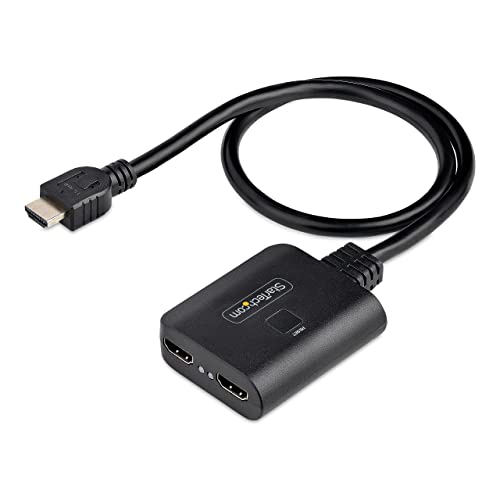
- Duplicates one HDMI source on two displays
- Supports 4K 60Hz, HDR, and 7.1-channel audio
- Driverless and OS independent
Best For: Mirrored presentations and shared viewing
DisplayPort Desktop Pick
Dual HDMI 4K60 DisplayPort Adapter

- Supports extended or mirrored dual displays
- Dual 4K 60Hz requires a DP 1.4 source
- No drivers; USB power and HDMI cables required
Best For: DP-equipped desktops and dedicated graphics cards
Windows USB-C Pick

- Dual 4K 60Hz HDMI output with compatible Windows hardware
- Driver-free extended or mirrored display support
- Extra-long 1-foot cable helps reduce USB-C port strain
Best For: Windows laptops and PCs with compatible USB-C DP 1.4 graphics
Best for Everyday Use
Abhih DP to Dual HDMI Splitter

- One DP input drives two HDMI displays
- Dual 4K 60Hz support with DP 1.4 hardware
- Includes USB power cable and detachable DP cable
Best For: Direct DisplayPort desktop and mini-PC dual-monitor setups
Windows Workstation Pick – StarTech Dual HDMI USB-A Adapter
For Windows users comparing hdmi extenders for dual displays, this StarTech adapter provides two HDMI outputs from a single USB-A 3.0 port. It supports one 4K display at 30Hz and one 1080p display at 60Hz, making it suited to productivity setups rather than high-refresh gaming.
Best For: Windows laptops and desktops needing two additional HDMI monitors for office or home-workstation use.
Pros:
- Adds two HDMI displays through one USB-A connection.
- Supports up to 4K at 30Hz plus 1080p at 60Hz.
- Works across Windows Intel, AMD, and Snapdragon X platforms.
- Includes a three-year warranty and lifetime 24/5 multilingual technical assistance.
Cons:
- Windows-only; it does not support macOS, ChromeOS, or Linux.
- Administrator rights are required for driver installation.
- Not both outputs at 4K 60Hz.
This is a practical choice when your computer has USB-A and your priority is adding workspace screens on Windows. Check your available USB port and resolution needs before buying.
Cross-Platform Productivity Pick – OREI SplitExtend Dual Monitor Adapter
The OREI SplitExtend is a flexible option among hdmi extenders for dual displays, connecting through USB-C, USB-A 3.1, Thunderbolt 3/4, or USB 4. It can extend two HDMI screens while also leaving a laptop display active, with support for 4K at 60Hz on both extended screens.
Best For: Productivity users with compatible Windows, macOS, ChromeOS, or supported Android devices who need an adaptable dual-monitor connection.
Pros:
- Supports extended display across two HDMI monitors.
- Offers 4K at 60Hz on both extended screens.
- Includes a 2-in-1 cable for USB-C and USB-A connections.
- Supports Apple M1, M2, and M3 MacBooks.
Cons:
- DisplayLink drivers are required on Windows and macOS.
- Not recommended for gaming, graphics-intensive, or design work.
- Does not support HDCP-protected playback such as Netflix and Hulu.
Choose this model for office applications and web-based work when broad host compatibility matters. Its driver requirement and protected-content limitation make it less suitable as an entertainment or gaming adapter.
Simple Mirroring Pick – StarTech 4K HDMI Splitter
If you need hdmi extenders for dual displays that show the same source on two screens, this StarTech splitter is a straightforward, driverless solution. It supports 4K at 60Hz, HDR, HDMI 2.0, and automatic downscaling when connected displays have different capabilities.
Best For: Duplicating one HDMI source across two monitors, TVs, or projectors without relying on an operating system.
Pros:
- Clones one HDMI source to two displays.
- Supports 4K 60Hz, HDR, HDCP 2.2/1.4, and 7.1-channel audio.
- Can output 4K and 1080p simultaneously through automatic downscaling.
- Driverless and OS independent.
Cons:
- Duplicates the image rather than extending the desktop.
- Requires USB power.
- Longer-distance cabling may require separately purchased active cables or extenders.
This is the better fit for presentations, signage, or mirrored viewing rather than an expanded computer workspace. Confirm that duplication meets your setup requirements before choosing it over a true multi-display adapter.
DisplayPort Desktop Pick – Dual HDMI 4K60 DisplayPort Adapter
This DisplayPort-to-dual-HDMI adapter is aimed at desktop PCs and graphics cards when shopping for hdmi extenders for dual displays. It supports mirrored or extended modes, with dual 4K at 60Hz possible when the host supports DP 1.4 and the monitors and cables meet the same requirement.
Best For: DP-equipped desktops, mini PCs, and dedicated graphics cards connecting two HDMI monitors without driver installation.
Pros:
- Supports SST mirror mode and MST extended mode.
- Can drive two 4K 60Hz displays with a DP 1.4 source.
- Plug-and-play design requires no drivers.
- Detachable DisplayPort input cable can be replaced with another length.
Cons:
- Requires USB power, while the power adapter is not included.
- Not compatible with hubs, docking stations, or KVM switches.
- Dual 4K 60Hz requires DP 1.4; DP 1.2 is limited to dual 4K 30Hz.
This adapter makes sense for a compatible desktop graphics output where two HDMI screens are needed at high resolution. Verify that the DP port is from suitable dedicated graphics hardware and purchase HDMI cables separately.
Windows USB-C Pick – StarTech Dual 4K HDMI MST Hub
For Windows users comparing HDMI extenders for dual displays, this StarTech hub is a streamlined USB-C option for adding two extended or mirrored HDMI monitors. It supports dual 4K at 60Hz when paired with a compatible DP 1.4 host and graphics configuration.
Best For: Windows laptops and PCs with USB-C DisplayPort 1.4 support, especially users who want dual 4K monitors without installing drivers.
Pros:
- Supports two HDMI displays at up to 4K 60Hz with compatible hardware.
- Works with extended or mirrored displays and uses integrated or discrete GPU capabilities.
- Supports HDR, HDCP 2.2, and two-channel HDMI audio.
- Built-in extra-long 1-foot cable helps reduce port strain on elevated laptops and 2-in-1 devices.
Cons:
- Not compatible with macOS.
- Requires a USB-C host with suitable DP 1.4, DSC, and GPU support for dual 4K 60Hz.
This is a strong fit for Windows-focused workstations, but shoppers should verify their laptop or GPU’s display capabilities before expecting dual 4K output. Its driver-free setup and longer integrated cable make it particularly convenient for office and travel use.
Best for Everyday Use – Abhih DP to Dual HDMI Splitter
This DisplayPort adapter is a practical choice among HDMI extenders for dual displays when your computer has a direct DP 1.4 output. It provides two HDMI outputs for extended or mirrored screens, with dual 4K 60Hz support when the source, monitors, and cables meet the required specifications.
Best For: Windows desktop PCs, graphics cards, and compatible mini PCs with a direct DisplayPort 1.4 connection.
Pros:
- Converts one DisplayPort input into two HDMI outputs for extended or mirrored displays.
- Supports dual 4K at 60Hz with a DP 1.4 source and suitable HDMI equipment.
- Plug-and-play design requires no drivers and includes a detachable DP cable.
- Supports backward-compatible resolutions including 4K 30Hz, 1440p, and 1080p.
Cons:
- Requires USB-C power and will not operate without external power.
- macOS supports mirroring only rather than MST extended mode.
- Not compatible with docking stations or KVM switches.
The adapter makes sense for a direct DisplayPort-to-two-HDMI setup, provided you confirm DP 1.4 support and connect the included power cable. It is less suitable for Mac users or setups built around docks and KVM hardware.
Triple-Screen USB-C Pick – llano Dual 4K HDMI MST Splitter
For laptops that support USB-C DisplayPort Alt Mode, the llano splitter expands one port into two independent HDMI video streams. It is a versatile option among HDMI extenders for dual displays, adding two external 4K 60Hz monitors while also supporting laptop-screen use for a potential triple-display Windows setup.
Best For: Windows laptop users who want two external 4K displays, laptop charging, and high-refresh-rate 1440p support from one USB-C connection.
Pros:
- Drives two independent 4K 60Hz HDMI monitors from one USB-C port on compatible devices.
- Windows systems can use the laptop screen plus two external monitors for triple extended displays.
- Integrated USB-C Power Delivery supports up to 100W charging.
- Supports HDR10+ and up to 144Hz at 2560×1440 resolution.
Cons:
- Requires a USB-C port with DisplayPort Alt Mode.
- macOS has limited functionality, with mirroring or partial extended modes rather than full Windows-style MST.
- Actual display performance depends on the host device and operating system.
The llano stands out when charging and display expansion need to share one USB-C connection. It is most compelling for compatible Windows laptops, while Mac users should review the stated mode limitations before buying.
Best USB-C Option – KOZYC USB-C to Dual HDMI Adapter
If you need HDMI extenders for dual displays from a USB-C laptop, this KOZYC adapter provides two HDMI outputs in a compact, plug-and-play design. It supports up to 4K at 60Hz with one active display, while dual-display use is limited to 4K at 30Hz. Your USB-C port must support Thunderbolt 3 or DisplayPort Alt Mode.
Best For: Windows laptop users who need flexible extended-display configurations from a compatible USB-C port.
Pros:
- Supports two HDMI displays from one USB-C port.
- Windows supports multiple display arrangements, including extended modes.
- No external power or driver installation is required.
- Compatible with Windows, macOS, Linux, and Android within stated mode limitations.
Cons:
- Dual HDMI output is limited to 4K at 30Hz.
- Not compatible with every USB-C port; DP Alt Mode or Thunderbolt 3 is required.
- macOS and Android have more limited display-mode support than Windows.
This is a versatile choice when your computer has the right USB-C video capability. Check the port specifications and operating-system limitations before buying, especially if you need two 4K displays at 60Hz.
Best DP-to-HDMI Value – SWITCHFLUX DisplayPort to Dual HDMI Adapter
For a desktop or laptop with DisplayPort output, this SWITCHFLUX adapter is a straightforward option for HDMI extenders for dual displays. It mirrors or extends one DP signal to two HDMI monitors, supporting up to 4K at 60Hz on one screen or 4K at 30Hz across two screens. A Micro USB connection is recommended for optimal display performance.
Best For: Windows PCs, laptops, and AMD or NVIDIA graphics cards with a DisplayPort source and two HDMI monitors.
Pros:
- Supports extended or mirrored output to two HDMI displays.
- Single-display resolution can reach 4K at 60Hz.
- Plug-and-play operation requires no driver installation.
- Aluminum housing, braided cable, and gold-plated connectors support durable everyday use.
Cons:
- Dual-display 4K output is limited to 30Hz.
- Requires a DisplayPort source and does not support Apple devices, game consoles, hubs, docks, or KVMs.
- Micro USB power may be needed for optimal operation.
This adapter fits a conventional PC-to-two-HDMI-monitor setup, provided the graphics card has sufficient bandwidth. Confirm that your source is DisplayPort rather than HDMI and update the graphics driver if extended mode is unavailable.
Best Powered DisplayPort Hub – Buerlaseul DP to Dual HDMI Adapter
The Buerlaseul B-DP2 is a compact, powered choice for HDMI extenders for dual displays when your computer provides a DisplayPort output. It supports 4K at 60Hz on one HDMI display and 4K at 30Hz on two displays, with the included USB-C power cable intended to improve stability.
Best For: Desktop users with compatible AMD or NVIDIA graphics cards who want a small DP-to-two-HDMI adapter for extended displays.
Pros:
- Supports extended or mirrored output to two HDMI monitors.
- Offers 4K at 60Hz for single-display use and 4K at 30Hz for dual-display use.
- Plug-and-play setup requires no drivers.
- Includes a USB-C power cable and compact enclosure.
Cons:
- USB-C power is required for stable performance.
- Dual-display output is limited to 4K at 30Hz.
- Works only from a DisplayPort source to HDMI displays and should not be used with hubs, docks, or KVMs.
Choose this model if reliable standalone operation and a compact design matter more than avoiding an external power connection. Before purchase, verify the source is DisplayPort and that the GPU can provide more than 18Gbps of bandwidth for multi-monitor expansion.
How We Picked These Hdmi Extenders for Dual Displays
We selected products that support two-monitor configurations while covering the most common connection types: USB-A, USB-C, and DisplayPort. We also considered advertised resolution and refresh-rate support, operating-system compatibility, extended-display capability, HDR support, installation requirements, and how clearly each product communicates its limitations.
These products are not interchangeable. Some create two independent desktops, while conventional HDMI splitters usually duplicate one source across two screens. Confirm the product’s display mode before buying.
Quick Comparison
- USB-A adapters: Useful for Windows laptops and desktops with spare USB 3.0 ports, but they commonly require DisplayLink software and may have lower performance than native video outputs.
- USB-C adapters and MST hubs: A convenient choice for compatible laptops, especially when the USB-C port supports DisplayPort Alt Mode. Windows MST support is generally more flexible than macOS support.
- DisplayPort-to-dual-HDMI adapters: Often the strongest option for desktop PCs and business workstations with DisplayPort outputs, provided the computer and adapter support the required MST mode.
- HDMI splitters: Best when both displays should show the same content. They are not automatically suitable for an extended desktop.
Key Buying Factors for Hdmi Extenders for Dual Displays
Extended Desktop Versus Mirroring
For two independent workspaces, look for terms such as “extended display,” “MST,” or “multi-monitor.” A basic splitter typically sends the same video signal to both monitors. If productivity is your priority, verify that the listing specifically supports separate desktops on your operating system.
Ports and Compatibility
Match the adapter to the source device, not just the monitors. USB-C must support video output; a data-only USB-C port will not work for display expansion. DisplayPort adapters require a compatible DisplayPort output, and some USB-A solutions are Windows-only or depend on DisplayLink drivers. Check support for Windows, macOS, ChromeOS, or the exact laptop model before ordering.
Resolution, Refresh Rate, and HDR
Check whether the advertised specification applies to both outputs simultaneously. Dual 4K at 60Hz can require substantial bandwidth and compatible hardware, while some adapters deliver 4K at 30Hz on one output and 1080p at 60Hz on the other. HDR support also depends on the computer, adapter, cable, monitor, and software settings.
Power, Drivers, and Cables
Bus-powered adapters are convenient, but demanding setups may work more reliably with external power. USB graphics adapters can require driver installation and may be less suitable for gaming or high-frame-rate video. Confirm whether HDMI cables, USB-C power delivery, or a separate power adapter are included.
Who Should Buy Which Hdmi Extenders for Dual Displays?
- Choose a DisplayPort dual-HDMI adapter for a Windows desktop or workstation with a suitable DisplayPort output and a need for native, high-refresh dual monitors.
- Choose a USB-C MST hub for a compatible Windows laptop that needs two HDMI displays from one compact connection.
- Choose a USB-A adapter when the computer lacks another video output and basic office productivity is the main use.
- Choose an HDMI splitter for presentations, signage, or mirrored content—not for independent extended desktops unless the manufacturer explicitly states otherwise.
- Choose carefully for MacBooks because macOS support for multiple external displays varies by model and adapter technology. Verify the exact Mac model and whether the product supports DisplayLink or native display expansion.